
User Guide: How to Sign Up & Set Up Your Business on Sabay Accounting
Welcome to Sabay Accounting! This step-by-step guide will walk you through setting up your account and registering your business.
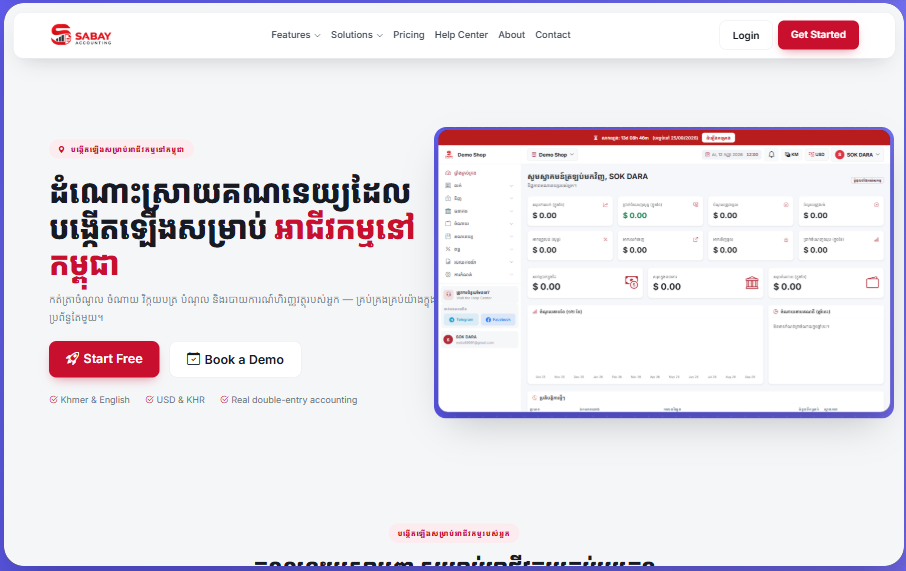
Step 1: Visit the Website & Get Started
Go to the homepage and click the Start Free or Get Started button (in red) to begin your free setup.
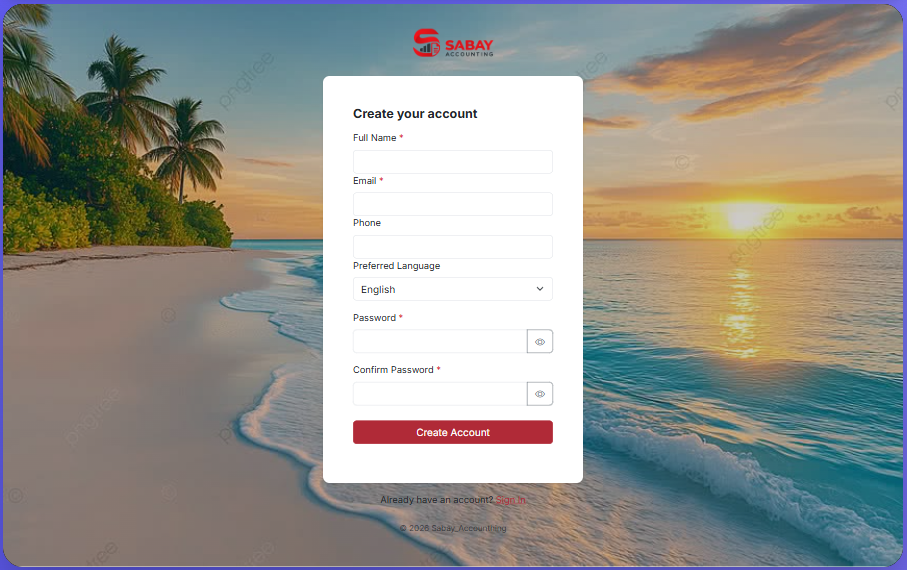
Step 2: Create Your Account
Fill in your personal and login credentials:
*Full Name : Enter your full name.
*Email : Enter your primary email address.
Phone: Enter your contact phone number.
Preferred Language: Select your preferred display language (e.g., English or Khmer).
*Password * / Confirm Password : Enter and confirm your password.
Click Create Account to proceed.
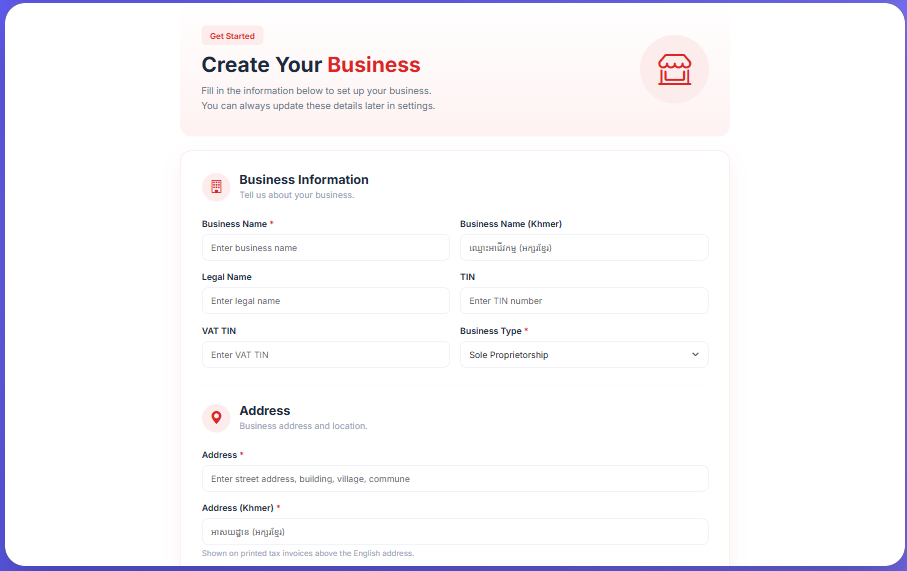
Step 3: Fill In Business Information
Provide the details for your business or organization:
Business Information:
Business Name * / Business Name (Khmer): Enter your business name in English and Khmer.
Legal Name / TIN / VAT TIN: Enter legal name and tax identification numbers (if applicable).
*Business Type : Select your business entity type (e.g., Sole Proprietorship).
Address:
Enter street address, building, village, and commune details in both English and Khmer.
Select your Province / Capital, District / Khan, and Commune / Sangkat from the drop-down menus.
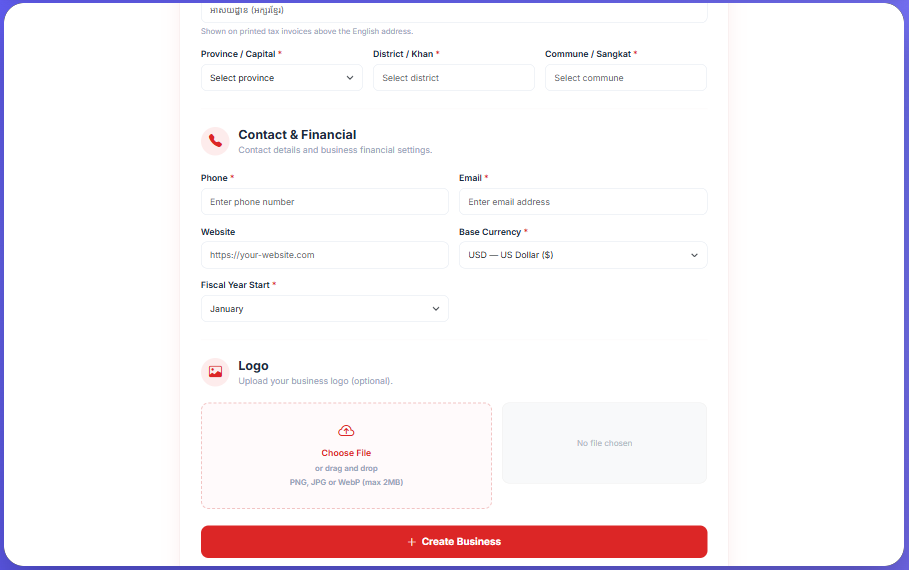
Step 4: Contact, Financial Settings & Logo
Phone * / Email * / Website: Provide your company's primary contact details and website URL.
*Base Currency : Choose your primary operating currency (e.g., USD — US Dollar or KHR — Cambodian Riel).
*Fiscal Year Start : Select the starting month of your financial year (e.g., January).
Logo (Optional): Click Choose File to upload your business logo (PNG, JPG, or WebP up to 2MB).
Click + Create Business to complete the setup.
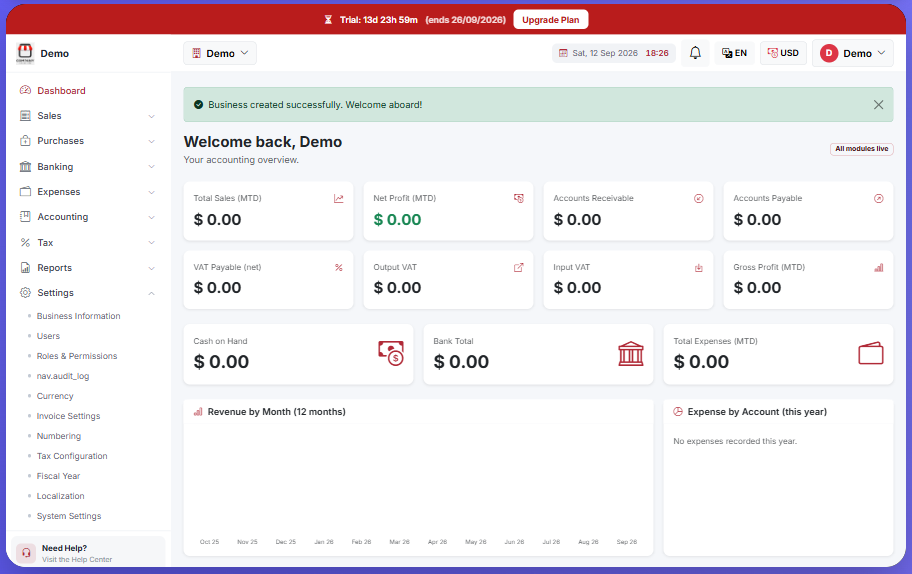
Step 5: Explore Your Dashboard Overview
Once your business is created, you will be redirected to the main dashboard:
Financial Overview: Track key metrics such as Total Sales (MTD), Net Profit (MTD), Accounts Receivable, and Accounts Payable.
Taxes & Cash Flow: Monitor VAT Payable, Input/Output VAT, Cash on Hand, Bank Total, and Total Expenses.
Navigation Menu: Use the side panel to access Sales, Purchases, Banking, Expenses, Tax management, Financial Reports, and System Settings.
Was this article helpful?
Our support team is here to help.
Contact Support