
User Guide: Customer Management & Adding New Customers (English)
Sabay Accounting provides a centralized platform to manage your customers, set credit limits, define payment terms, and track opening balances efficiently.
Sabay Accounting provides a centralized platform to manage your customers, set credit limits, define payment terms, and track opening balances efficiently.
Part 1: Key Benefits of Customer Management
Centralized Contact Database: Keep all customer contact details, addresses, and tax identification numbers (TIN) organized.
Track Opening Balances: Easily record any existing debts owed by customers prior to system setup.
Control Financial Risk: Set maximum credit limits and defined payment terms (due days) per customer.
Part 2: Step-by-Step Guide to Adding a Customer
Step 1: Navigate to the Customer Page
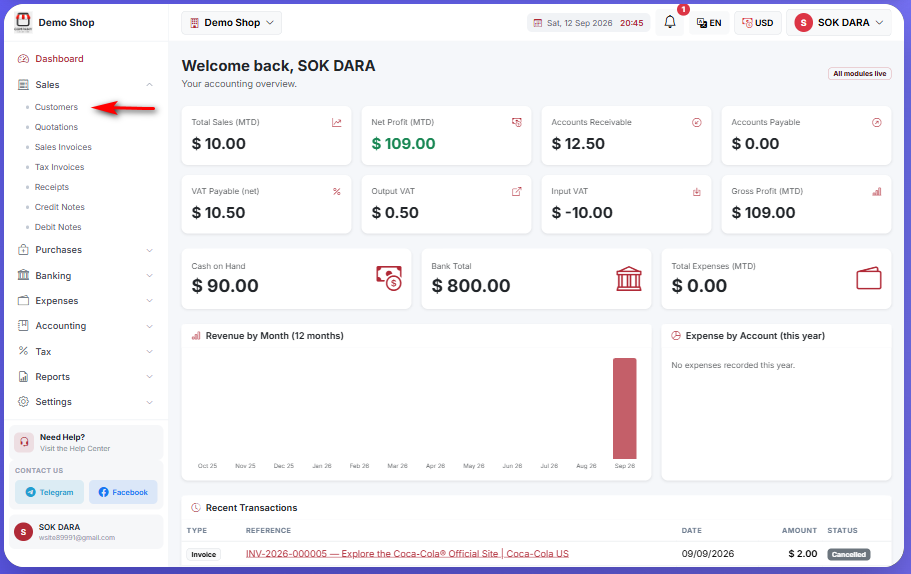
On the left navigation bar, click on "លក់" (Sales) and select "អតិថិជន" (Customers).
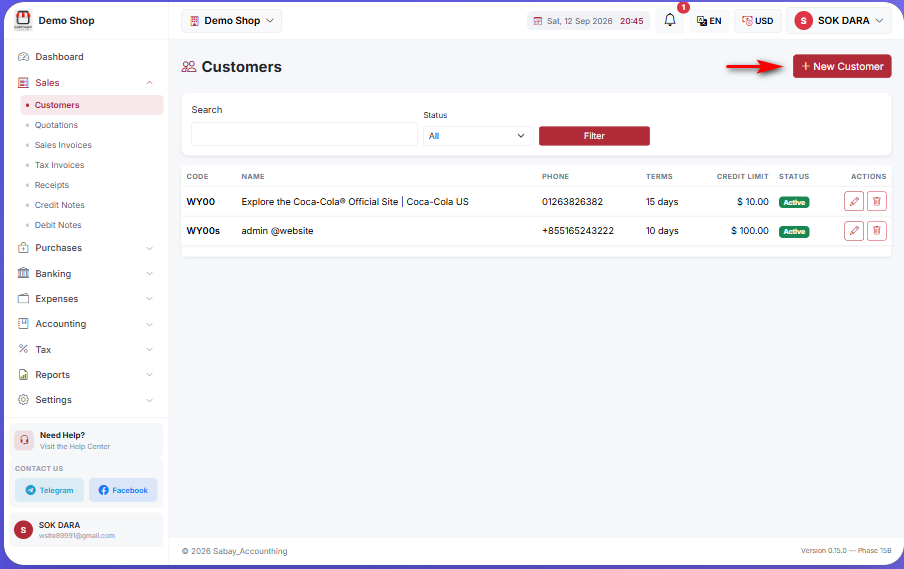
You will see your existing customer list displaying Customer Code, Name, Phone, Credit Terms, Credit Limit, and Status.
Click the "+ អតិថិជនថ្មី" (Add Customer) red button on the top right.
Step 2: Fill in Customer Details
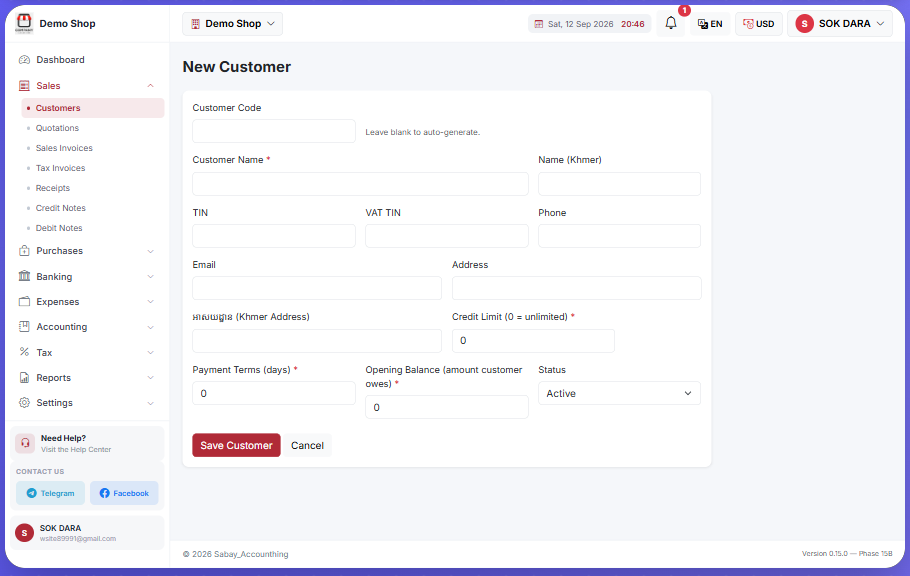
Complete the required and optional fields:
Customer Code: Leave blank to let the system auto-generate a code, or type a custom ID.
Customer Name * / Name (Khmer): Enter the customer or business name in English and Khmer.
TIN / VAT TIN: Enter the tax identification number if applicable.
Phone / Email / Address / Khmer Address: Enter the contact details and physical location address.
*Credit Limit (0 = unlimited) : Define the maximum allowed credit amount for the customer (enter 0 for no limit).
*Payment Terms (Days) : Specify the credit period in days (e.g., 0 for immediate payment, 15 or 30 days).
*Opening Balance (amount customer owes) : Input any existing outstanding debt the customer owes upon starting (enter 0 if none).
Status: Select Active or Inactive.
Step 3: Save Customer
Click the red "Save Customer" button at the bottom of the form to save the record.
Was this article helpful?
On this page
Our support team is here to help.
Contact Support